Pragma AI Agent

Pragma includes an AI coding agent inside the desktop app. The agent is designed to work where developers already work: terminal, editor, project files, command history, and source control.
Users do not need to understand how Pragma is built internally. They only need to know that the agent can see the working context they choose to share and can help them complete development tasks inside the app.
What The Agent Can Do
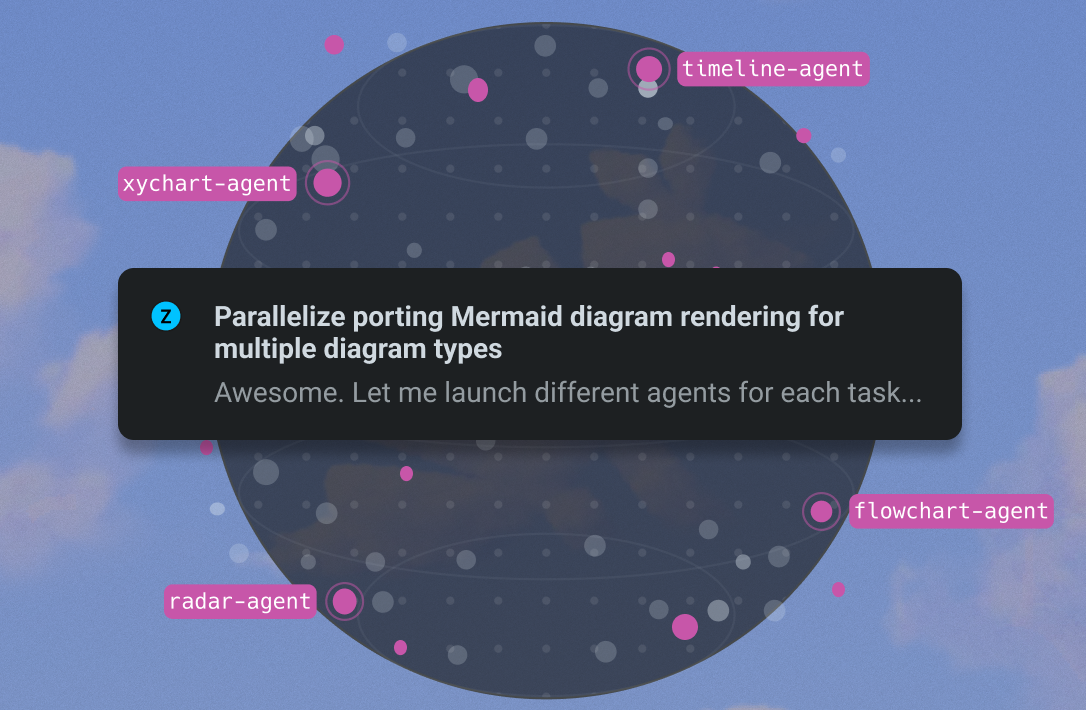
The agent can help users:
- Explain a codebase.
- Find files and symbols.
- Write or edit code.
- Run terminal commands.
- Diagnose errors.
- Review diffs.
- Generate tests.
- Work with project context.
- Use configured external tools.
Agent Autonomy
Users should be able to choose how much control the agent has:
| Mode | Behavior |
|---|---|
| Ask first | The agent explains the plan and waits before running commands or editing files |
| Assisted | The agent can make low-risk edits but asks before larger operations |
| Autonomous | The agent can execute a longer task with less interruption |
For sensitive projects, users should start with ask-first mode.
Agent Automations
Pragma can help users turn repeatable development work into agent tasks. An automation can represent a scheduled check, a recurring code maintenance task, a release note task, or another workflow that benefits from the same instructions being run again.
Context The Agent Uses
The agent can use context from:
- Open files.
- Current terminal directory.
- Recent commands.
- Project file tree.
- Search results.
- Selected text.
- User instructions.
- Configured MCP servers.
- Workspace rules and preferences.
Working With Other Agents
Pragma can also host CLI-based coding agents. Users can run tools such as Codex, Claude Code, Gemini CLI, or their own internal agent from the terminal while still using Pragma's editor, panes, search, Drive, and secrets.
Usage Limits
Some agent actions may use paid compute or account credits. When an account reaches a limit, Pragma should explain the limit clearly and send the user to the correct plan or billing page instead of failing silently.
Good User Flow
- Open a project.
- Ask the agent to inspect the code.
- Let it summarize the important files.
- Ask for a change.
- Review the plan.
- Let it edit.
- Run tests.
- Review the diff.
- Commit or discard the result.
Safety
The agent should treat destructive actions carefully. Deleting files, changing credentials, force-pushing, modifying production configuration, or running expensive cloud commands should require clear user approval.